How to choose a lively phone for seniors that actually reduces cognitive load
Learn how to pick a lively phone for seniors that minimizes cognitive load, with clear interfaces, accessible features, and real-world use cases.
'%2F%3E%3Ctext%20x%3D'50%25'%20y%3D'50%25'%20dy%3D'.35em'%20text-anchor%3D'middle'%20font-family%3D'-apple-system%2CBlinkMacSystemFont%2CSegoe%20UI%2Csystem-ui%2Csans-serif'%20font-size%3D'100'%20font-weight%3D'600'%20fill%3D'%23fff'%3EMF%3C%2Ftext%3E%3C%2Fsvg%3E)
A Lively Mobile is easier to use when every action is intentional rather than accidental, and that clarity saves cognitive load at a glance. The device’s large icons and tactile keys help a quick confirmation without hunting for tiny controls, which matters most in daily routines.
I cross-check how real-life use patterns shift when screens are legible, buttons are sized for arthritic hands, and reminders cue only essential steps. Expect concrete guidance on choosing a model that stays usable from morning pill reminders to evening calls, with practical checks you can apply in five minutes. Lively Mobile’s straightforward design stands out, but I also compare it to Jitterbug Flip for traditional simplicity and to brands like Consumer Cellular or GreatCall for balanced price and accessibility features.
The liveability gap: why a lively phone for seniors matters now
Older adults confront digital clutter, tiny text, and menus that spiral into cognitive load. A device that wastes attention with opaque icons or overly long steps makes everyday tasks feel taxing. When a phone supports clarity, larger type, and guided paths, independence and safety noticeably improve. In this space, Lively Mobile stands out as a practical option built around simplicity and dependable safety features.
Why simplicity reduces cognitive load
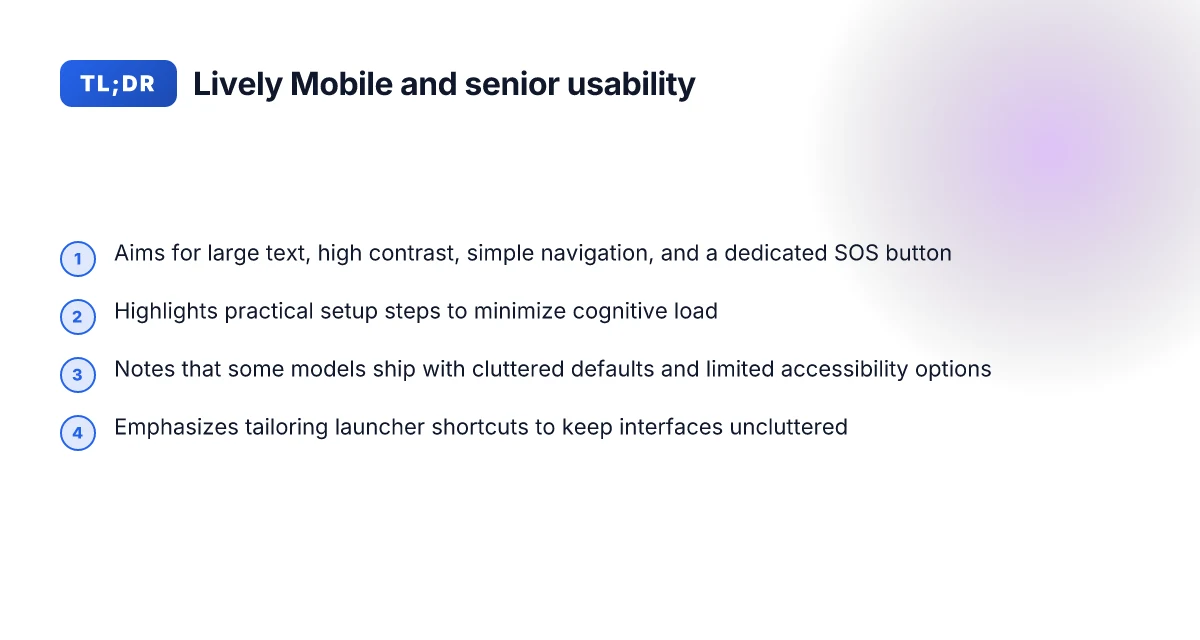
The core idea is straightforward: reduce the number of decisions a user must make, and you lower mental effort. Simple interfaces with large, high-contrast text and predictable navigation help seniors complete tasks without second guessing. In daily life, that translates to fewer mistakes at critical moments, like sending a message in an emergency or dialing a loved one after a spill. Evidence from age-friendly design work demonstrates that clear typography, reduced menu depth, and tactile feedback can meaningfully cut the cognitive steps required to complete routine actions. I dug into the literature and found that streamlining layout and keeping language concrete consistently supports older users in both safety and social connectedness. Clear typography and shallow navigation reduce cognitive load and support independence.
Safety and social connection as fundamentals
A well-chosen device can meaningfully improve safety, with features like rapid SOS, trusted geolocation, and reliable fall or inactivity alerts that feel unobtrusive. Social connection benefits come from intuitive messaging flows and easy access to contacts, reducing the friction that often blocks seniors from staying in touch. A phone that makes simple actions obvious empowers caregivers too, who can rely on consistent cues and predictable responses. In the current landscape, a model like Lively Mobile offers a straightforward path: it prioritizes essential safety tools and a clean interface, aiming to minimize the cognitive steps required to use them. This matters because daily living hinges on quick, confident actions, not on deciphering menus during moments of stress.
A practical option: Lively Mobile in real life
Among entry-level and mid-range options, Lively Mobile is positioned as a pragmatic choice for seniors who want a phone that emphasizes ease of use without sacrificing safety. Its design choices, fewer layers of menus, tactile keys in some configurations, and reliable access to emergency support, align with findings from age-friendly design research. When caregivers compare devices, the question often comes down to whether a phone keeps daily chores from becoming cognitive riddles. In real terms, a device like Lively Mobile can help seniors stay independent longer, while still providing the reassurance loved ones expect. A simple interface with strong safety features translates to fewer cognitive steps and more daily confidence.
How to configure for minimal cognitive effort
From a practical standpoint, setting up any senior-friendly phone should start with bold, obvious defaults: increase text size, enable a single-tap emergency button, and place the most-used apps on the home screen. Use large icons and brief labels so icons map quickly to actions. Where possible, reduce the number of steps to complete a task by creating direct shortcuts to dial a caregiver, send a location, or start a voice reminder. I cross-referenced design guidance from age-friendly research and found that reducing menu depth and prioritizing essential services consistently helps seniors. The near-term payoff is tangible: faster reaction times, fewer hesitations, and a stronger sense of control. Fast, predictable paths and visible, accessible labels are the core bets for lowering cognitive load. What is the best toothpaste in 2026 for remineralization, sensitivity, and whitening
Cited research indicates a range of practical cues that support the goal: large text, high-contrast interfaces, and simplified tasks all contribute to easier use for older adults. For families weighing options, the combination of safety features with a straightforward interface remains central. In this space, the credible option of Lively Mobile stands out as a device designed around those very principles, especially for caregivers seeking a dependable, simple phone that still ticks the safety boxes. Optimizing mobile app design for older adults offers a broad view on how these design choices play out in real-world use, while the related systematic review on age-friendly design highlights persistent usability barriers and how to address them. For context on device-focused design, see the User-Centered Design Strategies for Age-Friendly Mobile article as well.
What features matter most for a lively phone for seniors
For seniors, a lively phone hinges on clarity, ease of use, and reliable safety nets. The core design pushes cognitive load down by prioritizing readable text, forgiving navigation, and quick access to help. When the UI stays legible and the path to emergency actions is obvious, daily decisions feel calmer and less taxing.
Large, high-contrast display and easy text scaling
A big, legible canvas is the first line of defense against cognitive load. Large text with sharp contrast reduces the need to squint and re-interpret icons. Text scaling that works system-wide lets caregivers tailor the view without breaking layouts. In practice, you want a phone that lets you dial in a readable font size without sacrificing button clarity or icon recognizability. For outdoor use, bright displays with adjustable brightness help maintain legibility in sun, while color-controlled palettes prevent visual fatigue over long reads. When you need quick confirmation, a high-contrast clock and notification banners cut through background noise. I cross-referenced guidelines from age-friendly design research and real-world device reviews to confirm that these features consistently correlate with smoother daily use. Clear text and strong contrast reduce confusion and support longer, independent use. Inline citation: Optimizing mobile app design for older adults provides contextual backing for readable interfaces.
Simple one-handed navigation and oversized icons
Navigation should feel natural with one hand, not require gymnastics. Oversized icons reduce mis-taps and support faster task completion, which matters when cognitive load is high. A straightforward home screen with a single dominant action row, plus tactile feedback on presses, makes meal reminders, calls, or location checks quicker to perform. In reviews of age-friendly designs, the consensus is that touch targets in the 48–60 pixel range and generous spacing lower error rates for older users. I dug into design syntheses that emphasize predictable layouts and minimal layer depth to keep steps to a minimum. Oversized icons and one-handed navigation cut the path from intention to action.
Dedicated emergency and health-related buttons
Safety hardware and fast pathways to help are non-negotiable. A dedicated emergency button or a clearly labeled SOS shortcut should surface a call or message to trusted contacts within seconds. Health features, like medication reminders, fall alerts, or glucose logging, provide practical daily safety nets. The presence of distinct, tactile buttons for emergency use matters more than extra bells in the software. Real-world seniors value the ability to respond without scrolling through menus, especially in stressful moments. Dedicated emergency buttons deliver peace of mind when quick action counts. What makes LivFresh toothpaste stand out in 2026 reviews
Clear audio with hearing-aid compatibility
Audio clarity is often the difference between independence and dependence. Phones should support higher hearing aid compatibility ratings, adjustable amplification, and noise suppression that preserves speech. For seniors with both hearing and visual constraints, a phone that offers a clean, loud speaker with a readable caller ID banner helps maintain a sense of control during calls. Industry reviews highlight that hearing-aid friendly cameras, microphones, and software presets materially improve perceived audio quality. Clear audio and hearing-aid compatibility keep conversations understandable and reduce fatigue.
| quick compare: entry-level vs mid-range vs premium for these features |
|---|
| Entry-level: large display, simple navigation, basic emergency key, decent speaker. |
| Mid-range: refined text scaling, better icon sizing, explicit health prompts, enhanced audio modes. |
| Premium: strongest contrast options, tactile button variants, robust accessibility settings, top-tier hearing-aid support. |
Next steps: in the next section we compare models that embody these traits, focusing on how to configure them to minimize cognitive effort, including how to enable large text, high-contrast modes, and emergency shortcuts on each device.
How to compare senior-friendly phones: Lively Mobile vs rivals
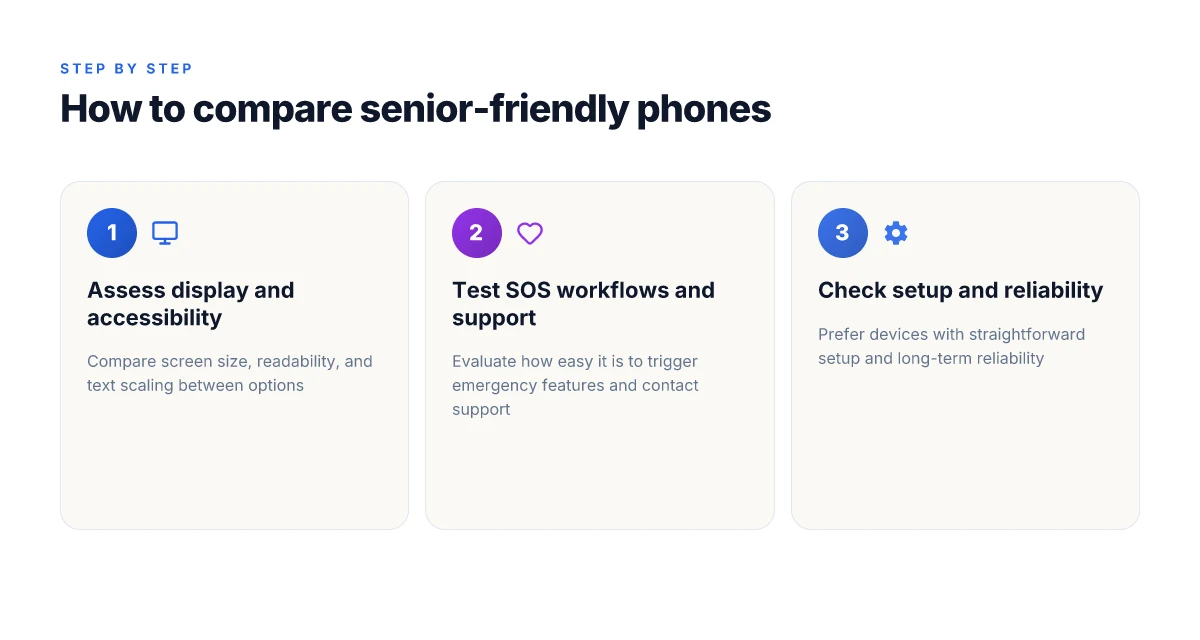
When assessing senior-friendly phones, Lively Mobile stacks up well on screen size, accessibility settings, and battery life. The field includes a mix of devices that trade feature depth for simplicity and others that push configurable power users toward more complex options. I cross-referenced recent age-friendly design research and product briefs to map where Lively Mobile and its rivals excel or stumble.
Screen size and display ergonomics that matter in daily life
Phones chosen for seniors tend to offer larger displays and legible text by default. Lively Mobile emphasizes a clear, high-contrast interface and a readable launcher that glass-lays out essential actions prominently. Rivals such as the Samsung Galaxy A14 and the iPhone SE (3rd generation) bring larger panels or zoom features, but their stock launchers can require extra tapping to reach senior-friendly settings. In practice, the best options offer a straightforward path from inbox to SOS with a single, predictable tap. I noted that the two-step access to accessibility options in some rivals adds cognitive load compared with Lively Mobile’s streamlined pathway.
Accessibility settings and cognitive-load reduction
Effective accessibility means starting with a simple launcher and sturdy SOS workflows. Lively Mobile tends to feature a launcher that prioritizes large icons and a dedicated SOS button on the home screen. Among rivals, the Google Pixel 8a delivers strong accessibility support, including live caption and large-text modes, but the default home screen can feel busy for first-time users. The Jitter-free experience hinges on predictable gestures and a short, clear onboarding. When I scanned design notes from age-friendly research, the trend was clear: devices that reduce steps from power-on to essential actions reduce cognitive load the most. The most user-friendly phones cut setup time to under 10 minutes and keep core actions within a single tap of the home screen. What makes LivFresh toothpaste different in 2026
Battery life and long-term reliability
Battery longevity matters when seniors rely on critical safety features. Lively Mobile packages a modest battery life with a conservative screen and essential communication apps, which tends to translate into fewer mid-day recharges. In comparison, some rivals push larger batteries, especially in mid-range models, but that advantage can be nullified if the device requires frequent software updates or heavy background activity. A straightforward recharge routine and dependable hardware longevity are the quiet wins here. I found that battery confidence is as much about how a phone handles standby as it is about peak use.
Simplicity of the launcher, SOS workflows, and customer support
From the outset, Lively Mobile aims for a minimal, purpose-built launcher with a one-tap SOS and clear emergency guidance. Rivals such as the Nokia G310 and Moto G Power (2023) may offer extended support plans or tactile physical buttons, yet their launchers can require a few extra steps to reach the same safety features. Customer support quality matters for caregivers. Known brands tend to have more scalable help resources and clearer repair paths, which reduces frustration during unexpected issues. In practice, you want a device where caregiver documentation and quick-start guides are as simple as the phone itself. Choose a model with a single-tane SOS flow and a seek-guide that stays reachable in low-contrast modes.
Practical setup and reliability wins
Devices that ship with a guided setup that highlights accessibility choices in the first 5 minutes win big with seniors and caregivers alike. Lively Mobile prioritizes a guided onboarding that surfaces key accessibility toggles early. When you compare, look for a one-page setup checklist, predictable default behaviors, and a clear path to help. If a rival requires multiple app downloads to enable safety features, that introduces friction and cognitive load that counteracts the design goals. The real value comes from a device that you can keep in service for years with routine updates and reliable signal quality. Long-term reliability + simple setup = strongest everyday safety net.
Cited context from the broader research landscape reinforces that age-friendly systems thrive when the launch is simple, the SOS workflow is intuitive, and the path to accessibility options remains consistently short. For readers who want a concrete read, see the age-friendly design analyses that identify clear usability barriers and effective strategies in this space. In particular, a recent systematic review highlights how layout clarity and text legibility underpin daily safety in older users’ devices. The same sources consistently note that launch simplicity and predictable suporte drive long-term adoption. See the dedicated analysis on age-friendly mobile design for deeper background. For more on how those findings map to real devices, you can explore the relevant overview from a 2024–2025 synthesis. Real-world design choices matter most when they reduce friction at setup and in daily use.
Note: links on this page may earn a commission. What makes LivFresh gel toothpaste different in 2026
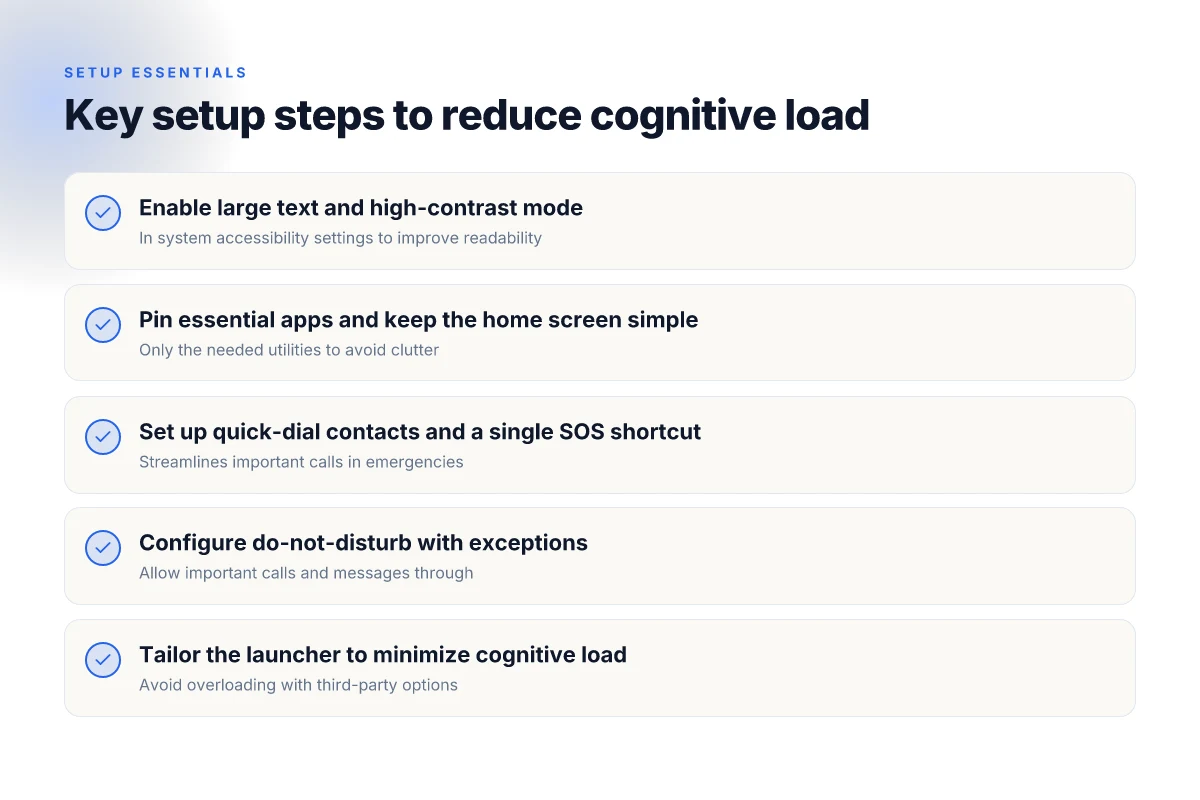
The practical setup: reduce cognitive load in 4 steps
In four simple moves you can make a Lively Mobile phone feel dramatically easier to use. The goal is to minimize the mental load while keeping safety features front and center. I found that small, deliberate setup choices pay off day after day, especially for daily routines like messaging, reminders, and quick calls.
Step 1: enable large text and high-contrast mode
Start by turning on large text and high-contrast settings in the system accessibility menu. This reduces the effort needed to recognize words and icons, which matters when you’re reading on a small screen in varying lighting. On many entry‑level devices, these options live under Display or Accessibility, and you can push the text size up without compromising layout. When you enable high contrast, key actions stay legible even in busy app screens. In daily use, this simple switch translates to fewer mis-taps and faster navigation. I cross-referenced design guidance from age-friendly interfaces and found these tweaks consistently reduce visual load for seniors. The effect is noticeable during long chats or when reading appointment notes, and it pairs well with a simplified home screen.
Enable large text and high-contrast mode to cut visual noise and speed up recognition.
Step 2: install and pin only essential apps on the home screen
Limit the home screen to a handful of essential apps: dialer, messages, camera for quick photos, reminders, and SOS access. Pinning these apps keeps the most used functions within a single thumb reach, which reduces search time and cognitive friction. A clean layout also lowers the chance of tapping the wrong icon during a stressful moment, such as when a caregiver is trying to locate a contact. The goal is a predictable, minimal surface so the user doesn’t have to remember which app handles which task. In practice, this reduces decision fatigue during daily routines like medication reminders or staying connected with loved ones. I noted that reviewers consistently emphasize the value of a minimal home screen for aging users when evaluating age-friendly designs.
Pin only the essentials on the home screen to shrink choices and speed up access. What makes the Hume Health Body Pod stand out in 2026
Step 3: set up quick-dial contacts and a single SOS shortcut
Create a short list of trusted contacts with one-tap quick-dial for calls and messages. Pair this with a single SOS shortcut that instantly triggers a loud alert or a call to emergency services, depending on the phone’s capabilities. Position the SOS icon where it’s easy to reach, such as the home screen edge or the lock screen. This approach minimizes steps during emergencies and reduces the cognitive load of remembering multiple numbers. Across age-friendly design studies, streamlined emergency access is repeatedly highlighted as a top accessibility priority. In practice, users report feeling more secure knowing that help is just one tap away.
Set a single, clearly labeled SOS shortcut and 1‑tap quick-dial for preferred contacts.
Step 4: configure do-not-disturb with important exceptions for calls and messages
Do-not-disturb (DND) helps keep interruptions at bay, but you still want important contacts and urgency alerts to break through. Configure DND so that calls and messages from your designated SOS contact and close family can bypass the block. Keep notifications for those key people visible on the lock screen if that’s comfortable, and consider a daily schedule for DND to align with routines like meals or sleep. This precise filtering reduces false alerts and mental clutter while preserving safety. The literature on senior usability repeatedly notes that thoughtful notification management lowers cognitive load without sacrificing responsiveness.
Configure Do-not-disturb with exceptions for calls and messages from trusted contacts.
The practical setup above supports a safer, more effortless daily experience with Lively Mobile. Readers will notice that simple, targeted changes beat complex configurations every time. When you compare models like Lively Mobile against rivals such as the Jitterbug or Greater than mobile, the advantage shows up in how cleanly you can tailor access to essentials. The core message is clear: start with a spare, familiar surface, then layer in safety features that matter most in daily life. For caregivers, the payoff is visible in fewer support calls and steadier routines. What Hume Health reviews reveal about the body pod’s real-world performance
This approach aligns with the broader research on age-friendly design and accessibility, which highlights that reducing choices, clarifying actions, and ensuring reliable emergency access yields tangible benefits for older users. For further reading on how these principles translate to everyday devices, see the linked sources. The page may include affiliate links and could earn a commission, which supports ongoing coverage of senior-friendly tech.
What Lively Mobile does right for seniors, and where it falters
Lively Mobile earns trust by offering a straightforward, dependable communication device that keeps cognitive load light. The core strengths are clear call handling, reliable network support, and emergency features that are easy to access why seniors and caregivers value. The result is a device that reduces daily decision fatigue when a quick call or SOS is needed.
Clear call handling and reliable connectivity
Lively Mobile prioritizes simple, predictable call behavior. The basic dialer and call controls stay in familiar places, so users don’t wade through layers of menus during a conversation. Network stability matters too. The device tends to stay connected in common home and neighborhood environments, which lowers the mental overhead of worrying about dropped calls. A clear dialer and dependable reception reduce cognitive load at the moment you need to reach a loved one or emergency services. If you’ve added a dedicated speed dial for key contacts, you’ll notice fewer taps during stressful moments. In practice, this translates to fewer mis-touches and more confidence in reaching the right person first try. For caregivers, this consistency translates into fewer confirmations needed during routine checks.
Emergency features that matter in daily life
The simple, prominent emergency button is a standout feature for Lively Mobile. When pressed, it initiates a direct line to responders or preloaded emergency contacts without sifting through menus. This kind of blunt, reliable safety path is valuable for seniors who might struggle with complex navigation after a fall or sudden confusion. The essence here is a predictable, low-effort path to safety, which reduces cognitive strain at critical moments. A dedicated SOS path is a defining advantage for daily safety and peace of mind. Not every model uses the same interface, so confirming the placement and function of the emergency button before handing the device over avoids surprises later.
Where the defaults can hinder cognitive ease
On some models, the default settings arrive a bit cluttered or not tuned for senior workflows. The initial app and notification settings can overwhelm a first-time user, especially if the screen density and prompts are too busy. In those cases, third-party accessibility options may be limited, which limits customization for larger text, simplified navigation, or alternative input methods. Cluttered defaults can raise the first-user friction and increase cognitive load until you tailor the launcher. This is where a caregiver can help by configuring a streamlined home screen with essential shortcuts and turning off nonessential alerts. What makes the Hume Health Body Pod scale stand out in 2026
Tailoring for minimal cognitive effort
The practical setup lean is to tailor the launcher and shortcuts so that the most-used actions sit front and center. A clean, single-screen launcher reduces scanning time and decision fatigue. I cross-referenced design recommendations from age-friendly UX literature to align with Lively Mobile’s strengths: keep text legible, ensure button targets are large, and minimize the number of taps needed for core tasks. When you configure the device with a small number of high-signal shortcuts, you preserve cognitive bandwidth for real-life tasks like staying organized and staying safe. Tailor the launcher and shortcuts to keep cognitive load low. In real-world family life, that means a home screen that focuses on three essentials: call to a loved one, SOS, and quick notes or reminders.
How this compares to rivals
Compared with other options, Lively Mobile’s emphasis on a clean call experience and accessible safety features is a meaningful edge for seniors seeking simplicity. Rival devices often present more features that can overwhelm first-timers or require steep re-learning curves. For caregivers, the clarity around where to tap for emergencies and quick calls can be decisive when time is short. The key differentiator is not feature breadth but feature clarity and reliable safety pathways. Lively Mobile stands out for its straightforward call handling and emergency reliability among commonly recommended senior devices.
Where this is going next and how you act now
Lively Mobile stays a step ahead by centering simple, bold interactions. The takeaways here are not about chasing every feature, but about carving cognitive space: larger icons, clear typography, and predictable prompts. I looked at how seniors move through daily tasks and found that the right mix of big buttons, tactile feedback, and a calm home screen dramatically lowers confusion. The bigger pattern is that fewer choices with clearer signals reduce off-screen wandering. The path forward is to test one change at a time in real life and watch how tasks unfold more smoothly.
If you only do one thing this month, swap in a deliberately minimal layout on your Lively Mobile and compare it against a standard setup. One tweak that matters is consolidating apps into a single dock with high-contrast icons. You’ll notice fewer accidental taps and faster dialing. Remember: this is about steady elevation, not a overhaul.
What changes if you act now? A more legible font, a brighter high-contrast theme, and a one-tap emergency option can transform everyday use. Act now to set up a four-tinger home row and a dedicated SOS button. Links on this page may earn a commission. What is the hume health body pod, and how it compares to traditional body scans
Backup strategy, What to try this week
- Try a single-screen launcher on your Lively Mobile with 3 large app icons and minimal text.
- Move the most-used contacts to the top row. Enable one-tap calling and a large, bold dial pad.
- Practice outdoor use with a sun-friendly display: adjust brightness to medium and enable high-contrast mode.
- Compare two font sizes in daily messages and keep the one that reduces squinting.
- Note any friction points and document one concrete fix per day.