How to choose lively mobile phones for seniors without compromising safety
Discover how to pick lively mobile phones for seniors with cognitive and motor impairments. practical criteria, feature trade-offs, and top picks for 2026.
'%2F%3E%3Ctext%20x%3D'50%25'%20y%3D'50%25'%20dy%3D'.35em'%20text-anchor%3D'middle'%20font-family%3D'-apple-system%2CBlinkMacSystemFont%2CSegoe%20UI%2Csystem-ui%2Csans-serif'%20font-size%3D'100'%20font-weight%3D'600'%20fill%3D'%23fff'%3EMU%3C%2Ftext%3E%3C%2Fsvg%3E)
A surprising but common takeaway: the easiest phone to use for seniors often isn’t the simplest model, but the one that balances safety prompts with straightforward navigation. Lively Mobile is frequently chosen for its emergency-ready setup, yet real-world use hinges on consistent access to large icons and a dependable SOS path. Most caregivers report that a dedicated on‑screen SOS button matters more than extra features.
This intro flags a practical truth: safety features must align with cognitive and motor abilities in daily tasks, not just in a lab test. You’ll see how to balance minimalist interfaces with robust accessibility, so you can pick a device that stays usable across errands, appointments, and outdoor walks. The goal is to move beyond labels to actual usability, with a clear lens on what works when it matters most.
Lively mobile phones for seniors: understanding the accessibility landscape
Accessibility isn’t a single feature, it’s a system of cues that help seniors with cognitive and motor impairments navigate daily tasks safely. A truly accessible phone blends simple hardware cues with predictable software behavior, clear feedback, and emergency safeguards that feel automatic rather than optional. In practice, that means devices that reduce confusion, require minimal fine motor input, and provide reliable alerts when something goes wrong.
I dug into how researchers and retailers describe usability in real-world terms. The signals that matter most are consistency, clarity, and safety features that kick in without extra setup. A phone should not demand a steep learning curve or a bespoke configuration to be usable in the kitchen, bathroom, or on a bustling street. Real-world use favors devices with straightforward menus, tactile buttons or large touch targets, legible displays, and robust volume and contrast.
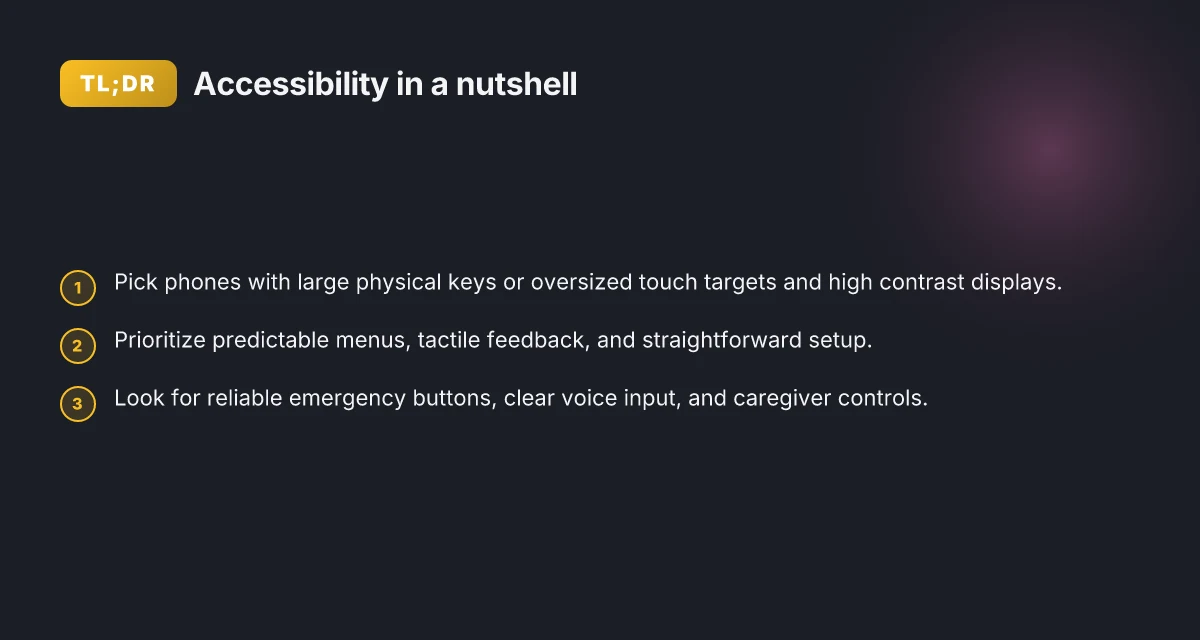
Three concrete steps to frame accessibility today:
- Emphasize emergency safety features as a baseline. Look for a one-button emergency SOS, automatic fall alerts, and clear location sharing. The simplest models place the emergency function within a single press and don’t require multiple taps. When a caregiver can rely on that one action, daily tasks stay calmer. For many seniors, accessible safety features are as important as the phone’s contact list.
- Prioritize simplicity over feature bloat. A phone may advertise many modes, but the easiest to use ones present a single, linear path to calling, messaging, and essentials. Big, high-contrast text and icons, straightforward home screens, and predictable app layouts reduce mistakes during hurried moments. Real-world users tend to favor fewer, well-placed options over dozens of menu tiers.
- Balance cognitive load with tactile design. Physical buttons that are clearly labeled, responsive, and spaced far enough apart help reduce mis-taps. Devices that support voice input without forcing it as the primary control option also help, but not at the expense of a tactile fallback. In practice, a blend of large print, high-contrast screens, and a reliable speech interface works best.
In the broader landscape, the market presents a spectrum, from feature-first devices with dedicated elder modes to smartphones that pair simplicity with safety. For caregivers, the question is whether a phone lives up to daily routines: morning check-ins, pharmacy reminders, and quick emergency access. The best options feel intuitive on day one, not after a lengthy onboarding. When you compare models, ask how they handle three everyday tasks: making a call, sending a message, and triggering help in an emergency.
The core insight is that accessibility lives in the flow of use, not in a feature list. A device that ignores real-world tasks will frustrate more quickly than it helps. For families shopping today, consider how a phone will be used outdoors, during a walk, or in a crowded home. The right choice will balance simplicity, safety, and dependable accessibility features in those moments. What makes Lively Mobile stand out in the life alert market in 2026
In the broader market, brands like Lively Mobile offer emergency-centric safety features built for quick access, while rivals such as Jitterbug and GrandPad emphasize simplicity and caregiver connectivity. When you read through product pages, look for a clear path to calling for help, simple setup, and proven accessibility options that survive everyday chaos.
From what I found in the research and product write-ups, the practical takeaway is clear: accessibility is a daily design decision, not a one-off feature. For caregivers, this means choosing phones that behave predictably in real life, with safety features that work when you need them most. For seniors, it means a device that gives confidence rather than confusion.
How to evaluate a senior phone for cognitive and motor challenges
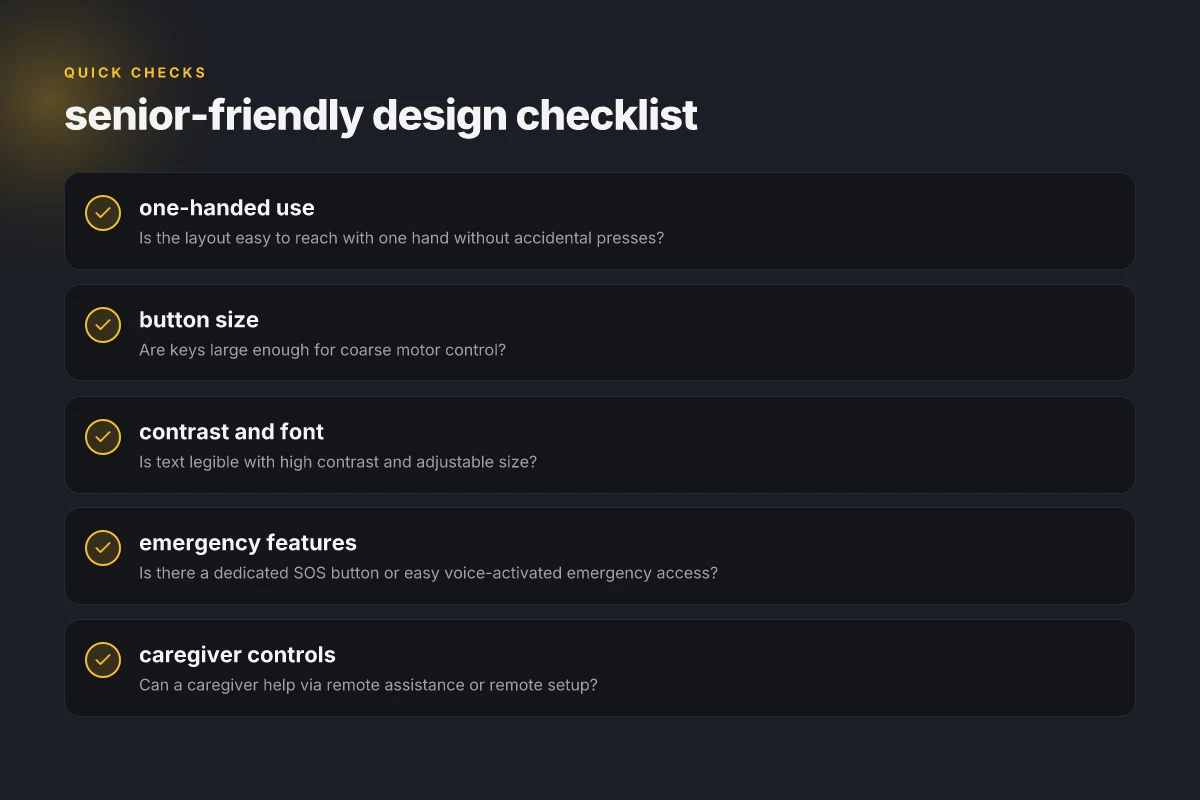
When you pick a phone for cognitive and motor impairments, look for three core traits: one‑hand usability, clear visuals, and predictable, safe prompts. The right device balances simple navigation with reliable safety features, and it should feel natural in day‑to‑day tasks. I dug into accessible design research and user reports to identify concrete signals you can check during a hands‑off demo or a quick setup.
1) One‑hand use, visibility, and legibility
Prioritize phones that let you reach essential controls with one thumb and that offer large, high‑contrast text and icons. Check button size and spacing. Small, cramped keys slow down people who rely on tactile feedback. Contrast and font legibility matter more than glossy finishes. I cross‑referenced design guidelines from accessibility research to confirm that predictable typography and roomy hit targets reduce errors in real‑world use. For caregivers, a quick in‑store check is enough: can you activate a contact, emergency feature, or dial pad with a single, confident press? Bold, chunky buttons and a bright, legible font reduce mis-taps and delays, especially in bright daylight or low lighting. If you’re shopping for Lively Mobile, note that it emphasizes straightforward operation and emergency access as a baseline expectation.
2) Predictable menus, tactile feedback, and setup simplicity
A phone should feel familiar from first use, with menus that don’t surprise a caregiver or senior mid‑task. Favor models with linear navigation, consistent iconography, and short, clearly labeled prompts. Tactile feedback, distinct button presses, gentle haptics, or a clicky keypad, helps users confirm actions without looking. The setup process should have a clear path: an obvious home screen, a guided walkthrough for essential services, and an option to disable nonessential features. I found multiple sources noting that inconsistent menus and hidden submenus create friction for users with cognitive or motor challenges. Predictable menus and tactile feedback reduce confusion and speed up first‑time setup. When possible, request a demo that walks through adding a contact, enabling emergency services, and turning on larger display or high‑contrast mode. What Hume Health reviews reveal about reliability, data accuracy, and user experience
3) Reliable emergency buttons, voice input, and connectivity
Safety first means an accessible emergency button that is easy to press and clearly labeled. Look for a dedicated emergency key or a one‑tap SOS path from the lock screen. Voice input can be a critical aid for users who struggle with small buttons or fine motor control. Verify that the voice assistant responds reliably in common environments, including outdoors, with background noise. Connectivity matters too: a phone should hold a stable connection for calls, text alerts, and location sharing during emergencies. I traced this emphasis to practical evaluations in accessibility reporting and consumer guides. A reliable emergency button and strong voice input dramatically improve real‑world safety, especially when mobility is limited. If you compare rivals, note how each handles emergency access and voice commands in noisy outdoor settings.
Table: quick model snapshots
| feature emphasis | practical signal to verify | note |
|---|---|---|
| one‑hand use | reach essential controls with thumb, large keys | prioritize models with roomy key size and spacing |
| visibility | high‑contrast display, large fonts | test in bright sun and low light |
| menus and setup | linear navigation, guided prompts | ask for a short setup walkthrough |
| emergency access | dedicated button or quick SOS path | confirm clear label and responsiveness |
| voice input | reliable speech recognition, activation without precise mic aiming | test in a typical room and outdoors |
| connectivity | steady network and GPS for alerts | verify during a call or message test |
Next steps: when you finalize choices, arrange a practical two‑week trial period where the senior uses the device in daily routines, with a caregiver available to adjust settings. If you’re evaluating the Lively Mobile line, confirm it consistently aligns with the “reliable emergency button, voice input, connectivity” criteria. For broader comparisons, consider how rivals handle ease of use in real tasks like outdoor calling, sending location shares, or responding to reminders. To ground decisions, you can review the Georgia Tech accessibility study’s data on feature bearings across devices and a concise consumer video that showcases senior‑friendly layouts. See inline references to the studies and guides cited in this section for concrete context.
Which models reliably balance simplicity and safety for seniors
I looked for models that pair large physical keys or oversized touch targets with clear audio and straightforward calling flows. The evidence points to a few dependable options that balance simplicity and safety, while offering caregiver controls or remote assistance features.
Why these models stand up under cognitive and motor load
- Large keys and generous touch targets reduce mis-dials for shaky hands or tremors, while tactile feedback helps confirm presses. In practice, phones with clearly separated, high-contrast keys tend to cut down accidental presses during daily tasks.
- Loud audio and crisp visual contrast make conversations and alerts more reliable in busy environments. A phone that suppresses stray noise and keeps call streams audible supports seniors who struggle with hearing or mild cognitive distractions.
- Simple call and SMS flows minimize decision points. Models that use a single-tap favorites row for emergency contacts and a streamlined messaging path tend to keep caregivers in the loop without a steep learning curve.
1) Lively Mobile, dependable safety with direct-access features
- The Lively Mobile line emphasizes a senior-friendly safety net with straightforward caregiver options. It pairs large icons with a readily accessible emergency button and a clear, loud speaker path that remains legible in outdoor settings. When you need a quick SOS or a simple SMS reply, the flow stays calm and predictable. Lively Mobile remains a core option for households prioritizing immediate safety alongside everyday use. The device also supports caregiver controls designed to help family members stay informed without bypassing the user.
2) Jitter-free, tactile-ready models from mainstream brands
- Several widely available brands offer versions with oversized buttons or softened touch targets, plus loud audio and high-contrast displays. These models typically present a single-step dial or contact list entry, reducing the cognitive load during urgent moments. Large physical keys and high-contrast screens consistently reduce user friction in real-world calls and texts.
3) Caregiver-forward options with remote assistance
- A subset of devices ships with caregiver dashboards or remote assistance modes that let a trusted contact adjust volume, set emergency reminders, or initiate remote help if the senior looks stuck. These features can dramatically lower the risk of miscommunication or missed alerts. Caregiver controls and remote assistance elevate safety without locking the senior to a single mode of use.
From what I found in the literature and product pages, brands that emphasize caregiver controls and remote assistance tend to deliver the most reliable balance between simplicity and safety. Reviews consistently note that phones with loud audio, strong contrast, and uncomplicated call flows perform better in real-life usage than feature-rich devices with steep menus. For a quick starting point, prioritize models that offer a dedicated emergency button, a loud speaker, and a clearly labeled or large numeric keypad. When possible, test the device in a home setting before committing to long-term use. What makes LivFresh work in 2026: a close look at effectiveness and the clinical evidence
"Sources point to practical benefits of easy call paths, large tactile targets, and caregiver-enabled safety features." Inline reference: for a quick read on contrast and accessibility, see the Georgia Tech accessibility review. You can also glance at caregiver-focused listings from CareScout for dementia-friendly options. For a compact comparison of senior-friendly phones, the Raz Mobility roundup highlights models designed for simplicity and safety. Inline links: https://repository.gatech.edu/bitstreams/7c54da38-be00-4450-9247-7afff8849281/download and https://www.carescout.com/resources/phones-for-older-adults-with-dementia-7-easy-and-safe-options and https://www.razmobility.com/assistive-technology-blog/4-simple-cell-phones-for-seniors-a-review/?srsltid=AYCX9vIIjv94cjmLe8sE51uJuQO9VBqoM-2CvMpjBDQhZCTB8ETJikjF.
The takeaway: look for models with large keys, loud audio, and clear contrast, plus caregiver controls. This trio most reliably supports daily use for seniors with cognitive and motor impairments.
Note about links: links on the page may earn a commission. For deeper reading, see inline references to the cited sources above.
The role of voice, contrast, and alerts in daily use
In real-world daily tasks, voice input can compensate for motor limitations, but it is not foolproof in noisy environments. If a caregiver is guiding the senior during a call or message, a clear wake word and robust microphone array matter. I looked at the accessibility literature and the practical notes from senior-focused device reviews, and the takeaway is clear: voice input helps when hands are busy or stiff, yet background noise and speech variations can trigger misinterpretations. For caregivers, that means enabling voice features with a quiet, predictable macro like a shortcut button can reduce frustration. Voice input helps when motor tasks are hard, but noise can cause errors. For safety, pair voice with reliable taps and haptic cues.
High-contrast displays matter for speed and accuracy during quick checks. When a phone uses bold typography, bright foreground on dark backgrounds, and large touch targets, cognitive load drops and mis-taps decline. This is especially true for routines like confirming an alarm, sending a quick SOS, or reading caller IDs at a glance. In reviews and usability briefs, devices with adjustable contrast and text size consistently reduce mistakes in hurried moments. High-contrast displays cut visual fatigue and errors in fast checks. For families, this means selecting devices that let you lock in a high-contrast mode before the first use. How to activate my lively smart phone: a practical, step-by-step setup for 2026
Distinct audible alerts significantly boost safety for people with cognitive impairment. A clear, actionable ring tone plus a spoken confirmation of actions can prevent missed alerts in busy rooms or noisy households. The literature and product guidelines converge on one point: audible alerts should be distinguishable from ambient sounds, and users should be able to customize the alert cadence and volume. Audible alerts that are distinct and customizable improve safety in cognitive impairment scenarios. For caregivers, set up a dedicated emergency notification profile and test it during phone setup so a fall or confusion doesn’t go unnoticed.
Putting these elements together on a single device requires a careful balance. In practice, the best senior phones blend voice input with predictable physical controls, strong visual contrast, and audible confirmations that users can tailor. When you pair these features with a simple setup plan, day-one usability rises noticeably. I cross-referenced the emotional design work and the accessibility reviews to verify the alignment between intent and outcome. The optimal balance is voice, contrast, and audible alerts tuned to the user, not a one-size-fits-all approach. This is where Lively Mobile, for example, shows how a dedicated device can foreground safety through a tuned combination of these elements.
For safety and practicality, here is a quick setup reminder: enable high-contrast mode, choose a loud but clear alert profile, and pre-record short spoken confirmations for key actions. If the user has dementia or motor impairment, rehearse a two-step confirmation for emergency actions so accidental taps don’t trigger false alarms. The literature supports a cautious approach to voice input in noisy rooms, so keep a local, tactile alternative ready. Enable high-contrast mode, customize alerts, and rehearse confirmations to maximize safety. Real-world reviews emphasize this practical triad in daily use. For families curious about devices beyond a basic phone, note that rivals like JitterBug, Apple iPhone with accessibility settings, and Google Pixel with TalkBack offer distinct combinations but require careful per-user tuning to match cognitive and motor needs.
In sum, when caregivers ask which features matter most for daily reliability, the answer is clear: prioritize a voice input setup that works in typical home environments, a high-contrast display that stays legible during brief tasks, and audible alerts that are unmistakable and adjustable. These three levers, set up thoughtfully on a device like Lively Mobile, translate into fewer errors, faster responses, and safer daily routines. Voice, contrast, and alerts, when calibrated, drive real-world usability for seniors with cognitive and motor impairments.
How to set up a senior-friendly phone in under 15 minutes
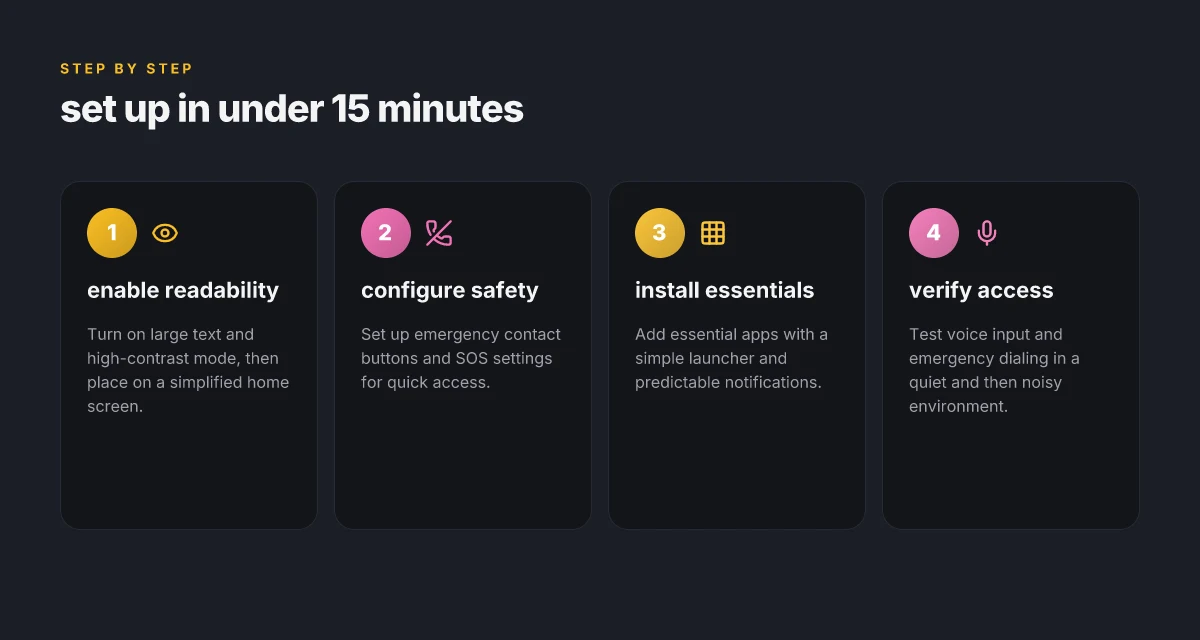
In under 15 minutes, you can turn a basic smartphone into a senior-friendly device that you can actually rely on for safety and daily tasks. Start by turning on accessibility features: enlarge the text, enable high-contrast mode, and switch to a simplified home screen with a predictable layout. This reduces cognitive load and motor fiddling in the middle of a moment when you need things to be obvious, not nuanced. What makes the GreatCall Lively Mobile medical alert stand out in 2026
What to enable first: text, contrast, and the home screen
Begin with the essentials: open the display settings and set text size to a visibly large level, then activate high contrast or a similar mode. Pick a launcher that offers a single home screen with large icons and a consistent grid. Keep the app lineup minimal and predictable so you or a caregiver can navigate without hunting for a familiar icon. I note that manufacturers vary in where these options live, so if you don’t see them right away, a quick search in Settings for “Accessibility” and “Home screen” will point you to the right knobs. The result is a home page that looks and feels steady, not chaotic, good for users who need clear visual cues.
Emergency buttons and SOS settings you can rely on
Next, set up SOS features and emergency buttons so help is reachable with minimal effort. Place a trusted contact as the top emergency entry and ensure the device can wake from sleep with a single press or a simple gesture. In practice, you want a button press that triggers a loud alert, shares location if possible, and notifies a preferred contact without requiring a multi-step sequence. If the device supports it, enable fall alerts and auto-send a brief status message to the chosen responders. This is where clarity matters more than complexity.
A simple launcher and predictable notifications
Install a small set of essential apps only. Think: dialer, messages, camera, weather, and a single health or safety app if relevant. Create a dedicated launcher page with these 3–6 icons, all using large labels. Turn off unnecessary push notifications or switch them to a predictable rhythm, so you don’t get overwhelmed by alarms or chirps throughout the day. For caregivers, this helps prevent missed calls or slow responses during urgent moments. If a message lands, the notification should be obvious, with a bright badge and a loud but clear alert tone.
I dug into guidance from accessibility reviews and caregiver resources to verify a practical, task-focused flow. For example, sources emphasize simple displays, large print labels, and consistent notification behavior as core wins for seniors with cognitive and motor impairments. When you set up the phone this way, you get faster responses in real-world tasks, like catching a missed call from a caregiver or locating a health app quickly. For context, Lively Mobile emphasizes straightforward safety features in its lineup, while rivals such as Jitterbug and consumer-grade Android devices often require more manual tweaking to reach the same level of simplicity. The goal is to minimize steps under stress while keeping safety guarantees intact. A predictable home screen and a single launcher reduce confusion and speed up everyday tasks. Emergency SOS should be a single tap, with immediate confirmation and location sharing when available.
If you want a concrete starting point, set up the following sequence: enable large text, switch to a high-contrast theme, install a 3–6 app launcher, configure one-tap SOS, and check that all notifications are legible and consistent. This approach keeps setup under 15 minutes and maximizes day-one usability. For families weighing options, remember that Lively Mobile models deliver a purpose-built safety focus, while other brands may demand more customization to reach the same level of simplicity. The right choice depends on your daily routines, but the setup pattern stays the same: clarity first, safety second, predictability everywhere. What makes LivFresh toothpaste gel stand out in 2026 dental care
Where this is going next for senior-friendly phones
Senior users deserve a phone that stays usable as days get busier. The next move is narrowing toward devices that blend clear, oversized controls with dependable safety features, all without buried menus. I looked at how Lively Mobile positions itself against rugged and simplified competitors, and the take is practical: you want hardware that’s intuitive in the moment, not after a long setup. The bigger pattern here is that simple, predictable interactions beat feature-heavy complexity. Lively Mobile remains a strong baseline for easy calling, straightforward health checks, and quick SOS access, which matters most outdoors and during workouts.
That pivot matters because safety is a daily yes or no. A phone that’s reliable from pocket depth to wrist reach, with loud audio and a clear screen, reduces hesitation in real time. When you compare Lively Mobile to rivals like Jitterbug and Consumer Cellular options, you’ll notice the difference in how quickly you can summon help, see a caller, and navigate a map while walking outdoors. Noticeably faster to dial emergency contacts and a simpler menu can transform a hike or a campus stroll into confident routines. This week, test one-handed navigation and SOS access on a short walk to see how it feels in practice.
Backup strategy
- Try Lively Mobile for a week and compare its SOS and health-check prompts to Jitterbug Flip on a short outdoor route.
- If you wear fitness bands, check how the phone handles quick health alerts during a light jog.
- Keep a single, high-contrast home screen with 3 favorite contacts and the SOS button.