Keepassxc iPhone
A practical guide to using KeePassXC on iPhone, including iOS alternatives and how to access KeePassXC data on iOS.

KeePassXC is a popular, open-source password manager known for its strong security model and compatibility with KeePass databases (KDBX). If you’re using KeePassXC on desktop and want to access your vault on an iPhone, you’ll need a compatible iOS app because KeePassXC does not offer an official iOS application. This article walks you through what works on iPhone, how to set it up, and what to expect from the main iOS options.

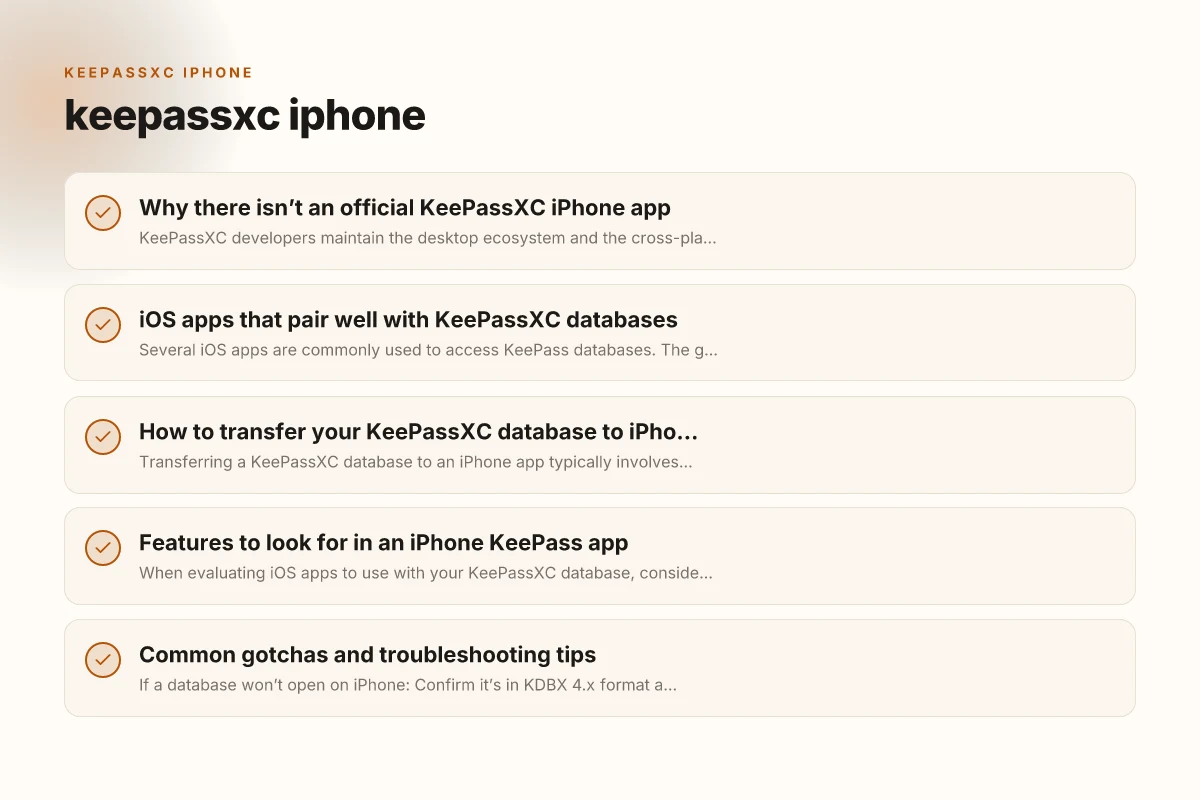
Why there isn’t an official KeePassXC iPhone app
KeePassXC developers maintain the desktop ecosystem and the cross-platform KeePass database format (KDBX). There is extensive documentation for KeePassXC on the project site. There is no dedicated iPhone app produced by the KeePassXC project. iOS users therefore rely on third-party apps that can read KDBX files and support KeePass features like AutoFill, biometric unlock, and synchronization.
What this means for iPhone users
- You can use your KeePassXC database on iPhone via a compatible iOS app.
- The iOS app should support KDBX 4.x so you can keep features in sync with KeePassXC 2.x databases.
- You’ll typically store the database in the cloud (iCloud Drive, Dropbox, Google Drive, etc.) or keep a local copy and sync as needed.
IOS apps that pair well with KeePassXC databases
Several iOS apps are commonly used to access KeePass databases. The goal is to preserve the security posture of KeePassXC while offering a smooth iPhone experience.
KeePassium
- Description: A privacy-focused KeePass app for iOS/macOS that supports KeePass/KeePassXC formats.
- Key features: Local vaults, AutoFill support, biometric unlock (Face ID/Touch ID), cloud sync options, strong encryption.
- Why users pick it: Strong polish, regular updates, good performance with large databases.
Strongbox
- Description: A feature-rich KeePass-compatible app for iOS available in the App Store.
- Key features: AutoFill, biometric unlock, multiple vaults and sources, Bluetooth hardware-key support via YubiKey in some workflows.
- Why users pick it: Longstanding presence on iOS, reliable performance, broad compatibility.
Other considerations
- Some users still reference MiniKeePass as a legacy option. It’s less common today but can work in certain workflows.
- When choosing an app, verify that it can import/export KDBX 4.x and supports AutoFill and biometric unlock.
How to transfer your KeePassXC database to iPhone
Transferring a KeePassXC database to an iPhone app typically involves one of two pathways: direct import or cloud-based synchronization. The exact steps may vary slightly by app, but the general process is similar.
Step-by-step guide
- Prepare your database
- In KeePassXC, ensure your database is in KDBX format (preferably KDBX 4.x).
- Set a strong master password and consider enabling a key file if you use one.
- Choose a storage method
- Cloud storage: Save the KDBX file to iCloud Drive, Dropbox, Google Drive, or another supported service.
- Local transfer: If you prefer, you can transfer via AirDrop or a USB connection, but cloud sync is usually simplest for cross-device access.
- Open the iOS app and import
- In KeePassium or Strongbox, choose Import or Open Database.
- Navigate to the cloud location or local file to select your KDBX file.
- Authenticate and configure
- Set up biometric unlock (Face ID/Touch ID) if you want quick access on iPhone.
- Enable AutoFill as needed to allow login suggestions in Safari and apps.
- Test access
- Verify you can unlock the database, browse entries, and perform a test login in a supported app or website.
Table: Quick comparison of KeePassXCiPhone options
| App name | Free plan | AutoFill support | Biometric unlock | Cloud sync options | Best use case |
|---|---|---|---|---|---|
| KeePassium | Paid with IAP options | Yes | Yes (Face ID/Touch ID) | iCloud Drive, other cloud services | Power users who want a polished, secure iOS experience |
| Strongbox | Free version with in-app purchases | Yes | Yes | iCloud, Dropbox, Google Drive, WebDAV | Users who want a robust, flexible option on iOS |
| MiniKeePass | Free / community-driven | Yes (depends on version) | Yes | Local/cloud options via integration | Lightweight, legacy workflows; not as actively maintained |
Features to look for in an iPhone KeePass app
When evaluating iOS apps to use with your KeePassXC database, consider the following capabilities: Home assistant yale: How to integrate Yale devices with Home Assistant for smarter security
- KDBX compatibility: Ensure the app supports KDBX 4.x format to avoid import issues.
- AutoFill compatibility: Seamless integration with iOS autofill for login fields.
- Biometric security: Face ID or Touch ID to unlock the vault quickly while maintaining security.
- Cloud or local sync: Decide whether you want cloud-based sync or purely local storage, and ensure the app supports your preferred service.
- Vault management: Ability to manage multiple vaults, create backups, and import/export.
- Security posture: Regular updates, open-source or transparent security practices where possible.
Common gotchas and troubleshooting tips
- If a database won’t open on iPhone: Confirm it’s in KDBX 4.x format and that you’re using a compatible app version.
- Import errors: Ensure the file isn’t corrupted. Re-export from KeePassXC with a stable export path, and re-import.
- Sync issues: If AutoFill seems slow or unresponsive, check cloud service permissions and ensure the app has access to the cloud folder containing the KDBX file.
- Key file usage: If your KeePassXC database uses a key file, ensure the key file is accessible on iPhone and correctly linked in the iOS app settings.
- Backups: Always keep a recent backup of your KDBX file before making major changes or migrations.
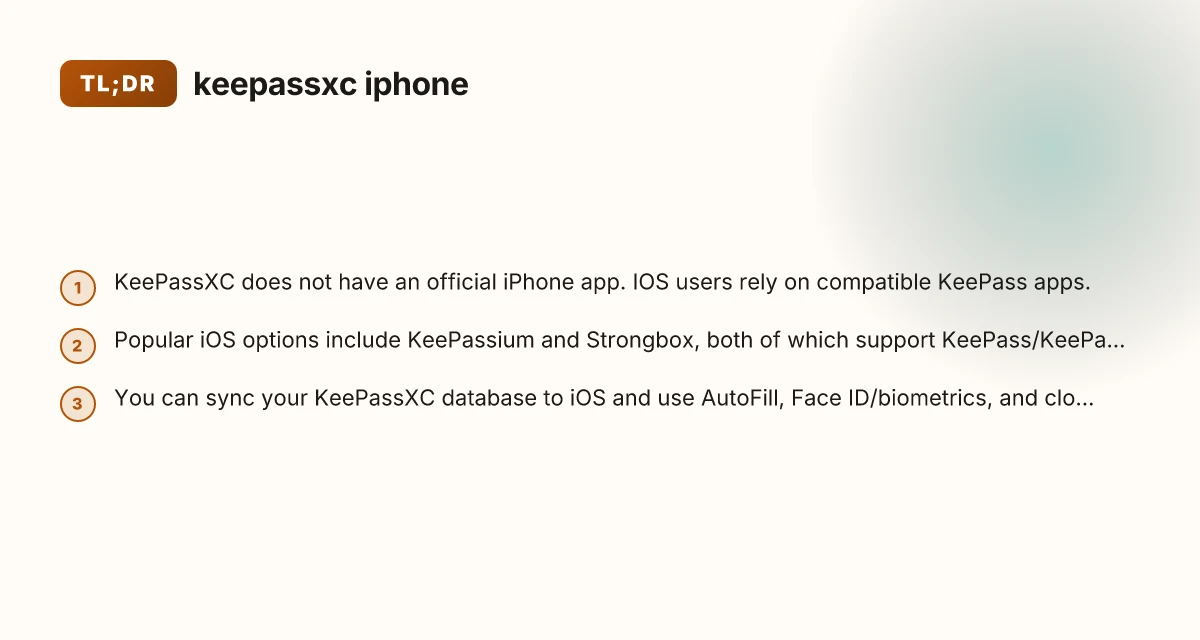
Table of recommended workflows
| Workflow scenario | Best app approach | Notes |
|---|---|---|
| You want a single app for iPhone and desktop with strong UX | KeePassium (paid) or Strongbox (free core features) | Both support KDBX and auto-fill on iOS; choose based on UI preference |
| You mostly store data locally, with occasional cloud backups | Strongbox, local vault + cloud sync | Leverage cloud sync for cross-device access; ensure backups exist |
| You use key file authentication | KeePassium or Strongbox with key file support | Verify that the app can reference the key file securely |
Best practices for a KeePassXC-to-iPhone setup
- Standardize on KDBX 4.x: This ensures compatibility across KeePassXC on desktop and iOS apps.
- Enable AutoFill carefully: It speeds up logins but should be configured only after you’ve secured the vault with biometric protection.
- Use a strong master password plus optional key file: If you use a key file, store it securely and not in the same place as your password database.
- Keep backups: Maintain an encrypted backup of your database outside the cloud service commonly used, in case of sync or service outages.
- Regularly update apps: iOS apps like KeePassium and Strongbox receive updates for security and compatibility. Keep them current.
Final recommendation
There isn’t an official KeePassXC iPhone app, but you don’t need one to bring KeePassXC-style security to your iPhone. For the closest KeePassXC experience on iOS, use KeePassium if you want a premium, polished experience with strong security features, or Strongbox if you prefer a free-to-use option with robust compatibility. Both apps can read KDBX 4.x databases and support AutoFill and biometric unlock, making it straightforward to access your KeePassXC data on the go. Start by exporting or syncing your KeePassXC database to your chosen cloud service, then import it into your iPhone KeePass app and configure Biometric unlock and AutoFill. With the right setup, you’ll have secure, convenient access to passwords across your desktop and iPhone.