Clash for iOS: How to Choose and Get Started
Learn what Clash for iOS options are available, how to choose an app, and what to check before connecting.

If you’re looking for Clash for iOS, start by choosing a compatible iPhone or iPad app, then add a configuration from a provider you trust. One option in the current search results is Clash Mi, an App Store app described as a rule-based network proxy tool. Its listing requires iOS 15 or later for iPhone and iPadOS 15 or later for iPad. Availability and app details can change, so check the listing in your region before proceeding.
iOS options at a glance
| Option | What it is | Best for | What to check | Setup effort |
|---|---|---|---|---|
| Clash-compatible iOS app | An iOS client that can use Clash-style configuration | Users who want Clash-like features | Current App Store listing and compatibility | App-based |
| Shadowrocket | A third-party network utility | Users whose configuration is supported | Availability in your region and supported formats | App-based |
| Stash | A third-party proxy client | Users seeking a Clash-style workflow | Current features and configuration support | App-based |
| Surge | A network tool with proxy features | Users who need its available tools | Current pricing and configuration compatibility | App-based |
| iOS built-in VPN settings | Apple’s built-in VPN configuration | Users with a compatible VPN service | Provider protocol and setup instructions | Manual |
| Desktop Clash client | A desktop option, not an iOS app | Testing or managing configurations elsewhere | Device compatibility; it does not run as an iOS app | Desktop setup |
Compiled November 2026; check the provider's site for current details.
What “Clash for iOS” means
“Clash for iOS” is often used as a general search term for iOS apps that work with Clash-style configurations. It does not necessarily point to one official app with that exact name. Search results include Clash Mi, a project called clashmi, and a site offering an iOS download page.
A client is the app you install on your device. A configuration supplies the settings and rules the client uses. Depending on the app and configuration, these settings may include proxy servers, routing rules, and connection behavior.
The distinction matters: installing a client alone does not provide a working connection. You generally need a compatible configuration, and you should only import one from a source you trust.
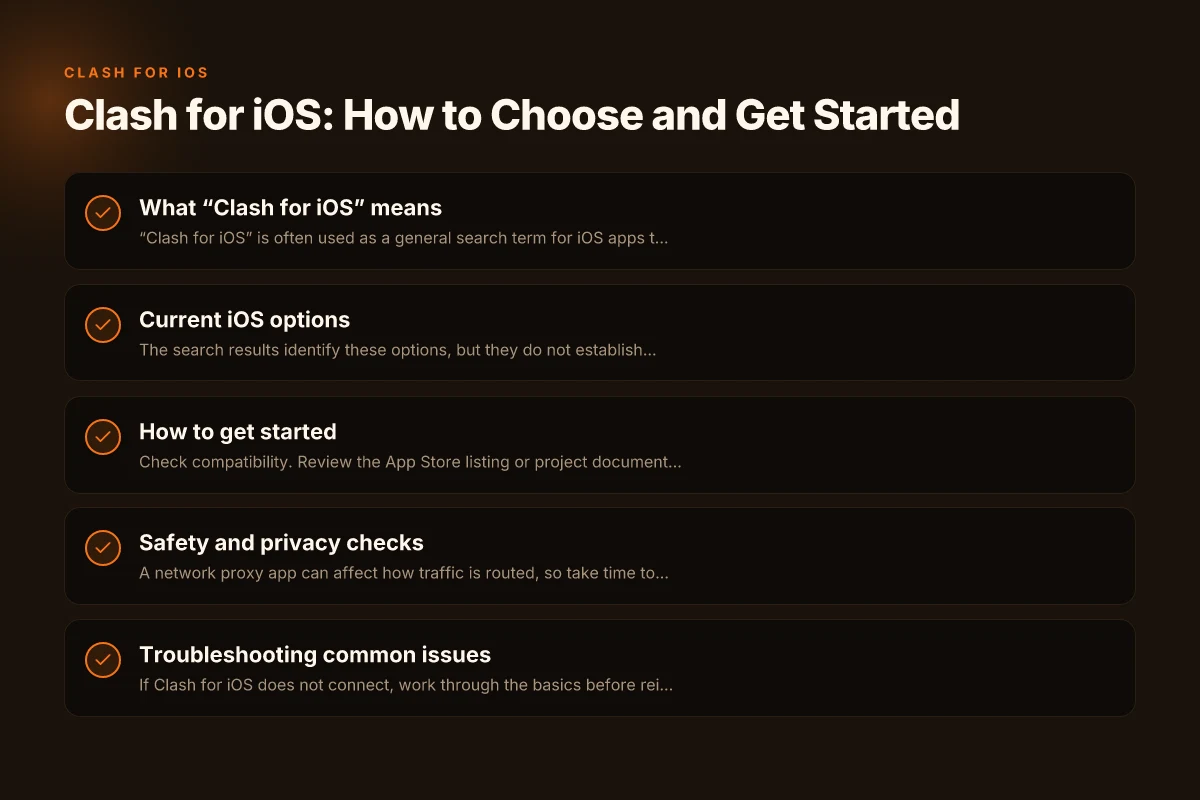
Current iOS options
The search results identify these options, but they do not establish that every app or download page is official or suitable for every user.
| Option | What the search results say | What to check |
|---|---|---|
| Clash Mi | An App Store app described as a rule-based network proxy tool; requires iOS 15 or later and iPadOS 15 or later | Confirm the listing, developer, region availability, and current requirements |
| clashmi | A cross-platform project for iOS, macOS, Android, Windows, and Linux; its GitHub page describes a built-in Mihomo core | Check the project’s documentation, release information, and installation instructions |
| Clash iOS download page | A website presents an iOS download page | Verify the source and installation method before downloading anything |
The names can be similar, so avoid choosing an app based on name alone. Confirm that the product page matches the project you intended to use. VPN Free: How to Choose a Free VPN That Protects Your Privacy
How to get started
- Check compatibility. Review the App Store listing or project documentation for supported iOS versions and device requirements.
- Install from a source you can verify. For an App Store app, open its listing directly and confirm the name and developer. For a project download, follow the project’s own documentation.
- Obtain a configuration. Use a configuration supplied by a provider or administrator you trust. Do not assume that an app includes servers or settings.
- Import it using the app’s instructions. The exact steps vary by client and configuration format. Consult the app’s help material rather than guessing.
- Select a rule or connection option, if required. Labels and features differ across apps. Review what each setting does before changing it.
- Connect and test. Check the app’s connection status and confirm that the apps or services you intend to use behave as expected.
If an import fails, check that the configuration is current and supported by your chosen client. Avoid sharing configuration links publicly. They may contain access details.
Getting started comparison
| Step | What to do | What you need | Check before continuing | Common snag |
|---|---|---|---|---|
| Choose an app | Select an iOS client | A compatible iPhone or iPad | App availability and supported formats | App unavailable in your region |
| Get a configuration | Obtain one from a trusted provider | Provider instructions or configuration | Source and permissions | Untrusted link or file |
| Import configuration | Add it using the app’s supported method | Configuration URL or file | Correct format and current validity | Import or parsing error |
| Review settings | Check selected rules and options | App access to its settings | Provider guidance and intended routing | Unexpected traffic routing |
| Enable connection | Start the app’s VPN connection | iOS permission to add VPN settings | App and configuration are trusted | VPN permission not granted |
| Test access | Try a few known sites or services | Active connection | Expected behavior and privacy needs | DNS or routing issue |
Compiled November 2026; check the provider's site for current details.
Safety and privacy checks
A network proxy app can affect how traffic is routed, so take time to assess both the app and the configuration source. An App Store listing is useful for checking the app’s stated requirements and developer, but it does not replace reviewing the provider and settings you choose.
Before connecting, consider these checks: Cj.cj.net VPN: What the Site Is and How to Find the Right VPN Information
- Read the app’s current description and privacy information.
- Confirm who supplied the configuration and how to contact them.
- Review the permissions requested by the app and whether they make sense for its function.
- Avoid installing profiles, certificates, or software from unfamiliar websites.
- Keep the app and your iOS device updated.
- Disconnect if the configuration behaves unexpectedly or you cannot verify its source.
A configuration may determine which traffic uses a proxy and which connects directly. If you are unsure what a rule means, ask the provider or consult the client’s documentation before relying on it.
Troubleshooting common issues
If Clash for iOS does not connect, work through the basics before reinstalling:
- The app is unavailable: App availability can vary by region. Check the current App Store listing or the project’s official documentation.
- The configuration will not import: Confirm that you copied the complete link or file and that the client supports its format.
- The connection is rejected: The configuration may be expired, incomplete, or no longer supported. Contact its provider.
- Some apps still connect directly: Check the client’s routing rules and the configuration’s intended behavior.
- The app cannot create a connection: Review any iOS permission prompt and the client’s setup guide. Do not approve unfamiliar requests without understanding them.
Safety and troubleshooting decision guide
| Situation | First check | Possible action | Avoid | When to seek help |
|---|---|---|---|---|
| Configuration from an unknown source | Who supplied the link or file | Use a trusted provider | Importing unexplained configurations | Source cannot be verified |
| App asks for VPN access | App identity and purpose | Grant only if you trust the app | Approving prompts automatically | Request seems unrelated |
| Configuration will not import | Supported format and link validity | Request a fresh configuration | Repeatedly retrying an unknown file | Provider confirms a valid file |
| Connection will not start | iOS VPN permission and app status | Reopen the app and review settings | Installing multiple VPN tools at once | Permission or error persists |
| Some sites do not load | Routing rules and DNS settings | Check provider instructions | Changing unfamiliar settings blindly | Issue affects important services |
| Connection is slower than expected | Network conditions and selected route | Try the provider’s recommended route | Assuming the app guarantees speed | Performance remains poor |
| Privacy is a priority | Provider policies and data handling | Review the provider’s privacy terms | Treating encryption as anonymity | Terms are unclear or concerning |
Compiled November 2026; check the provider's site for current details.
Recommendation
For most people searching for Clash for iOS, a sensible first step is to review Clash Mi’s App Store listing, confirm that it is available for your device, and read its current instructions. If you prefer a project with broader platform support, examine clashmi’s GitHub documentation and releases. In either case, install only from a source you can verify and use a trusted, compatible configuration. OpenVPN Connect: Download, Set Up, and Use the Official VPN Client